Custom Labels in LWC
How to keep Custom Labels in LWC?
To use labels in HTML, you need to create an additional component variable (labels).

There are several different ways to store Custom Labels in LWC.
If you need to use a few labels we recommend the following approach:
Create a separated file called customLabels.js.
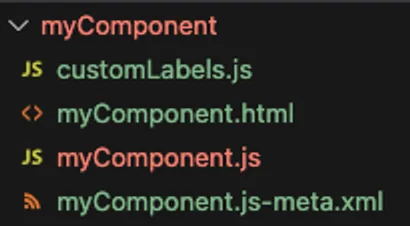
What are the next steps?
Import labels in the customLabels.js file.
We are using ES6 module here, which allows us to share code.
import errorOccured from '@salesforce/label/c.ErrorOccured';
import firstName from '@salesforce/label/c.FirstName';
import lastName from '@salesforce/label/c.LastName';
import email from '@salesforce/label/c.Email';

const labels = {
    errorOccured,
    firstName,
    lastName,
    email
};

export default labels;
Import labels from customLabels.js into your LWC.
To use labels in HTML, you need to create an additional component variable (labels).
import { LightningElement } from 'lwc'
import labels from './customLabels'

export default class MyComponent extends LightningElement {
    labels = labels;

    // ...
}<template>
<div>{labels.errorOccured}</div>
</template>Why a separate JS file for labels?
Single Responsibility Principle - The sole responsibility of customLabel.js is to manage labels. Code Readability - The LWC component (myComponent.js) does not contain label imports, keeping the component's JS code clean. Lack of Dependencies - Each component has its own labels that can be changed independently.