SVG in LWC
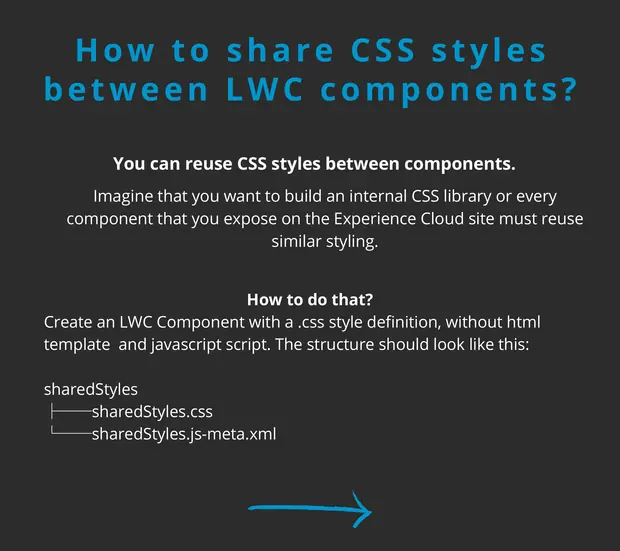
SVG IN LWC
You have received an SVG icon from a UX/UI designer and need to use it in an LWC.

How to add SVG Icon to LWC?
You have received an SVG icon from a UX/UI designer and need to use it in an LWC.
You have a few options:
Add it directly to the HTML, which can make your code a bit messy since SVG code is usually quite long. Add the icon as a static resource, which can make it even more challenging.
Alternatively, you can convert the SVG icon to a CSS background.
How to do it?
1. Go to https://www.svgbackgrounds.com/tools/svg-to-css/ or just google “svg to css”. 2. Insert your SVG icon. 3. Copy the generated CSS’s code. 4. Add the code to your LWC’s CSS as a background-image.
markup
<template>
    <div class="salesforce-logo"></div>
</template>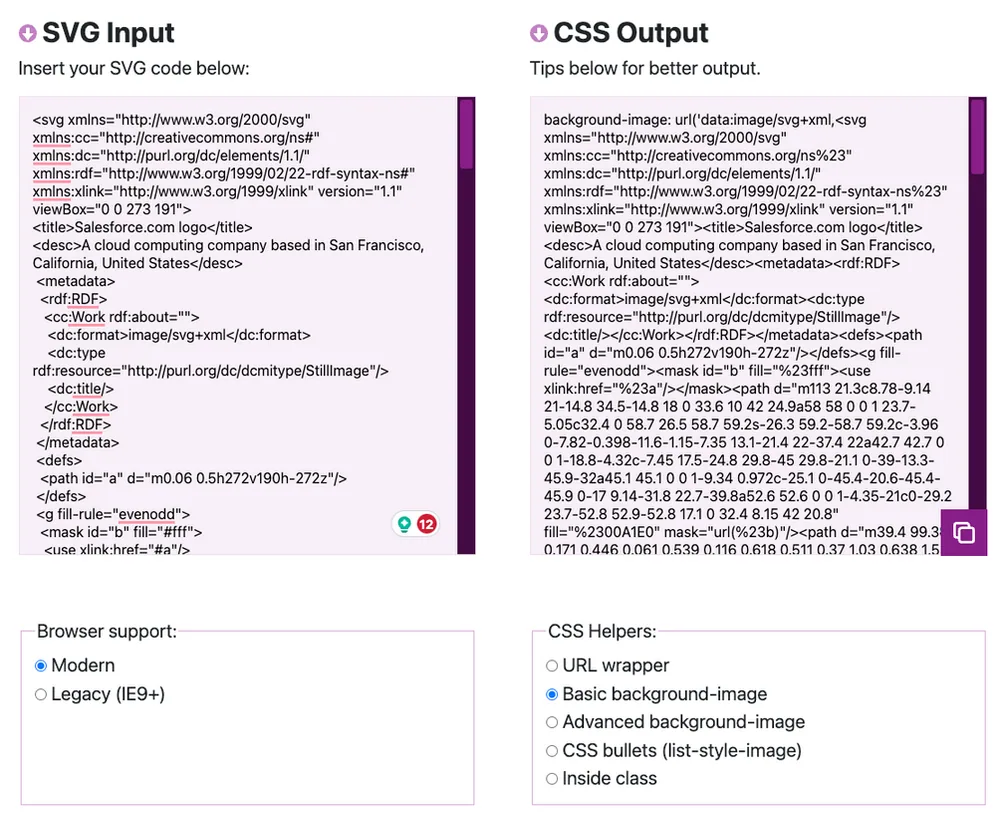
css
.salesforce-logo {
    width: 273px;
    height: 191px;
    background-image: url("data:image/svg+xml,%3Csvg xmlns='http://www.w3.org/2000/svg' xmlns:cc='http://creativecommons.org/ns%23' xmlns:dc='http://purl.org/dc/elements/1.1/' xmlns:rdf='http://www.w3.org/1999/02/22-rdf-syntax-ns%23' xmlns:xlink='http://www.w3.org/1999/xlink' version='1.1' viewBox='0 0 273 191'%3E%3Ctitle%3ESalesforce.com logo%3C/title%3E%3Cde.....");
}